IMPORTANT NOTES:
- SMDT does several checks to make sure that the mask
design is correct. However, observers should
always check the sanity of the
mask design after submitting the design to the Slitmask
Database, in order to make sure that the final mask design
is correct.
Background
LIKE DSIMULATOR, with SMDT observers interactively select a set of
science targets and distribute slits across the mask so that the
spectra will not overlap. You will also identify two sets of
stars to be used for mask alignment:
- Coarse alignment stars establish the approximate
alignment of the mask and must be lie within the DEIMOS guider field of view.
- Fine alignment stars enable precise adjustment of
the instrument rotation and telescope position to center your
science targets within their slits. Such stars can lie anywhere
within the DEIMOS science camera
field of view.
SMDT generates several kinds of output, including:
- FITS binary table that are uploaded via the Keck
slitmask submission system for eventual milling at the Keck
summit
- PNG plot of the mask layout
- ASCII output file listing the selected and non-selected
targets which is used to generate guider finder charts
- For LRIS a .file3 file is also produced for comparison to autoslit generated masks
Download and Running
Basic installation
Follow these steps to download and run the SMDT software:
- The SMDT software can be found on the Keck github .
The software can be downloaded with a git clone.
git clone https://github.com/KeckObservatory/smdt.git
- Check the requirements.txt file and install any missing dependences.
Running the software
Go into the smdt directory.
python app.py --lris or python app.py --deimos
This should launch the SMDT software in your default web browser..
Target List
The key input for SMDT, like DSIMULATOR is the catalog of possible targets.
You will supply this catalog in the form of an ASCII file with one
line per target. There are 7 required fields followed by several
optional fields, as shown in this sample
intput catalog.
SMDT/DSIMULATOR input file format
| Column |
Field |
Description |
Datatype |
Units |
Example |
| Required Fields |
| 1 |
Object Name |
Currently limited to 16 characters.
No whitespace allowed. |
string |
|
Cl0016+16_gal276 |
| 2 |
RA |
Right Ascension |
real |
sexagesimal hours |
00:16:00.000 |
| 3 |
Dec |
Declination |
real |
sexagesimal degrees |
+16:00:00.00 |
| 4 |
Equinox |
Equinox of RA/Dec coordinates |
real |
year |
2000.0 |
| 5 |
Magnitude |
Brightness of target |
real |
mag |
21.50 |
| 6 |
Passband |
Filter in which the brightness was measured |
string |
|
V |
| 7 |
Pcode |
Priority code: indicates target type and relative
weighting of science targets as indicated below. |
integer |
|
1000 |
| Optional Fields |
| 8 |
Sample |
Sample to which the object belongs. When
auto-selecting, objects in Sample 1 are selected first;
remaining space is then filled with Sample 2, then Sample 3,
etc. Default=1. |
integer |
|
1 |
| 9 |
Select |
Flag indicating whether to pre-select the target. If
non-zero, object is pre-selected. This is useful for
objects that you definitely want to appear on the mask, eg,
extremely high-priority objects, or e.g., a set of useful
alignment stars. Default=0. |
integer |
|
0 |
| 10 |
SlitPA |
Position angle of the slit |
real |
degrees |
180.00 |
| 11 |
Len1 |
Requested length above object (in direction of PA) |
real |
arcsec |
4.0 |
| 12 |
Len2 |
Requested length below object (opposite to PA) |
real |
arcsec |
4.0 |
| 13 |
SlitWidth |
Desired slit width. Not implemented, so this value is
ignored. Slit width is set globally by the input parameters. |
real |
arcsec |
1.5 |
Priority codes
- positive values act as weights in selection
of program targets (i.e., priority = 1000 has twice
as much weight for selection as priority = 500);
- -1 indicates a guide star;
- -2 indicates an alignment star;
- 0 should not be used
- others ignored
Program objects should have PCODE>0. There is a bug ported from DSIMULATOR
that allows slits to be put over PCODE=0 objects, but they will not be milled.
Avoid using PCODE=0, or carefully check that the results are as expected.
Mask design considerations
Selecting coarse alignment stars
Coarse (initial) alignment of the DEIMOS mask on-sky is
accomplished by identifying stars in the DEIMOS guider
and placing it at the position indicated on the
finder chart you'll generate at Keck using the deimos_guider_dss software.
DEIMOS observers must consider these characteristics when
selecting guide stars:
- Quantity. Please select 3-5 possible alignment stars
if possible. Relying on a single star is asking for trouble,
since it could fall in a bad place (e.g., near an edge or on the
border between mask and mirror).
- Placement. The DEIMOS
guider field of view consists of two parts, one viewing the
pickoff mirror and one the reflected sky off the slitmask. The
pickoff mirror, which covers about 1/3 of the field of view, is
the preferred place to position your coarse alignment star.
Stars can also be placed on the slitmask region, but it is only
about 30% reflective and so stars seen there will be somewhat
dimmed. If possible, avoid choosing a star near the break
between the mirror and slitmask. If multiple coarse
alignment stars are available, it's definitely wise to select
several in case one presents problems.
- Brightness. Your coarse alignment stars should be in
the 15<R<18 magnitude range. Fainter stars become
increasingly difficult to identify and may only work in
excellent atmospheric conditions. If possible, it is preferable
to guide on stars on the brighter end of the range. If stars on
the fainter end of the range are selected, it is strongly
recommendable that they are placed on the guider's pickoff
mirror rather than reflected off the slitmask.
The same stars used for coarse alignment will also be used for
guiding, so if you can't locate any good stars for alignment you
may not be able to observe the mask at all. If you need to find
more stars, you can either change the mask center or rotate to a
different PA (e.g., change by 180 to access the same set of
targets).
Selecting fine alignment stars
Fine alignment of the DEIMOS mask with the science targets is
accomplished by centering selected stars within square alignment
boxes milled into the slitmask. By default, SMDT will
create boxes of size 4×4 arcsec, and you should use
this recommended size. Further recommendations:
- Select isolated (non-double) stars in the brightness range
15 <= R <= 20 for your alignment boxes.
- We strongly recommend selecting at least 2 stars toward
each end of the mask (i.e., at least 4 stars per mask).
- In designing masks, we recommend identifying suitable
alignment and guide stars and pre-selecting them in the
input list as described above.
Slit width constraints
Please note the following factors which constrain your choice of
slit width and slit orientation:
- The minimum permitted slit width is determined by the
tool size used in the milling machine and the tilt of your
slits relative to the mask PA, as described here.
- The maximum allowed tilt of a slit is determined by the
tool size as described here.
Running DSIMULATOR
SMDT Parameters
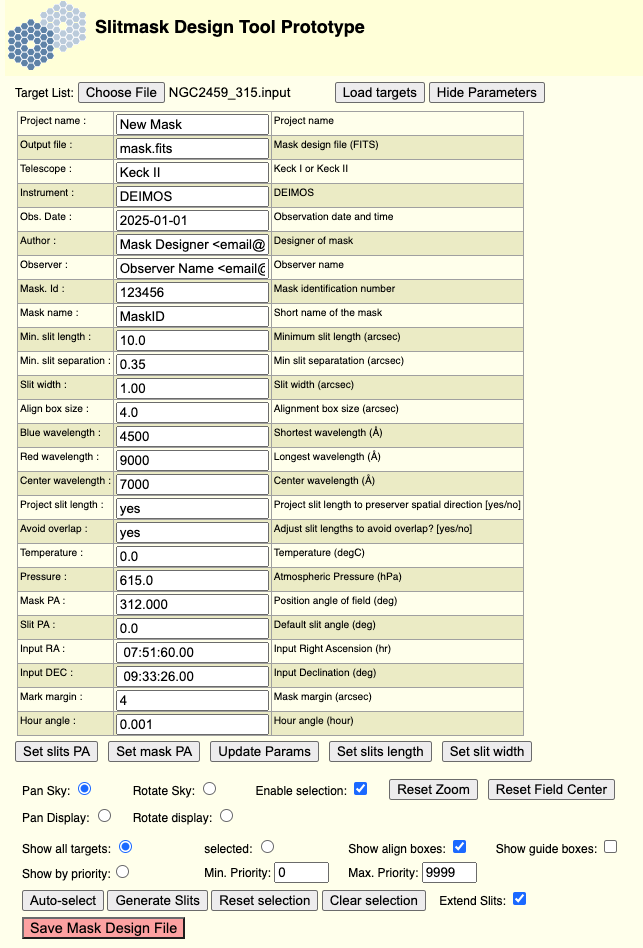
Note
- The GUI Name cannot have more than 6 characters.
- The output file contains information you will
need for generating your finder
charts and Keck
starlist file. Plan to bring those files along on your
observing run.
- The author parameter should match the email
address of your registered account with the UCO slitmask
database.
- The dateobs parameter must be in the future;
otherwise, the slitmask will not be accepted by the slitmask
submission system. It should be the first night of your observing run.
User interface
When you run SMDT, you will choose your input target list and load targets.
Once you load the targets and update the parameters, the targets will be displayed over a mask outline.
You may need to click on the canvas window or auto-select the targets for them to appear in the canvas window.
Once targets are selected, the generate slits button will display the slits for the selected objects, and the Save Mask Design button outputs the .fits, .out, and .png files.

The canvas window is interactive and can be rotated or panned with the mouse. Zooming in an out can also be accomplished with the < and > keys. Remember to update your parameters every time you recenter in order to save the new RA and DEC positions.
Procedure
Quick summary of basic mask design
- Launch the software: python app.py --lris or python app.py --deimos
- Update the parameters
- Click the auto-select button to select targets
- Recenter the targets in the FOV
- Update the parameters to save the new center RA and DEC
- Select alignment boxes and guides stars in addition to the selected targets.
- Generate Slits
- Save the Mask Design File
Details
Make sure that alignment stars and at least one suitable guide
star are selected!
By default, slits are lengthened to where they nearly touch
each other (the slit separation is a parameter, for which 0.5
arcsec is currently recommended). In cases where overlap would
occur, by default the slits are shortened to avoid
overlap. In the plots, both the object (drawn to show the
requested slit length) and the slit appear, so it is immediately
apparent whether slits have been lengthened or truncated.
The final step is to save the mask design, at which point the MDF FITS file
is generated, as well as the output text file and the png file. Note the output text file can be used as an input in SMDT or DSIMULATOR.
The first object in the .out file is recognized as
the field center if it has a field "PA=nnn" in place of
magnitude. Note that this line is also properly formated for
the Keck starlist, provided the colons are replaced with spaces.
Mask submission
After designing your slitmasks, you can submit them for milling.