Index

LGS TRICK Target Acquisition

TRICK target acquisition overhead is significantly higher than the STRAP mode overhead.

  1. First Steps
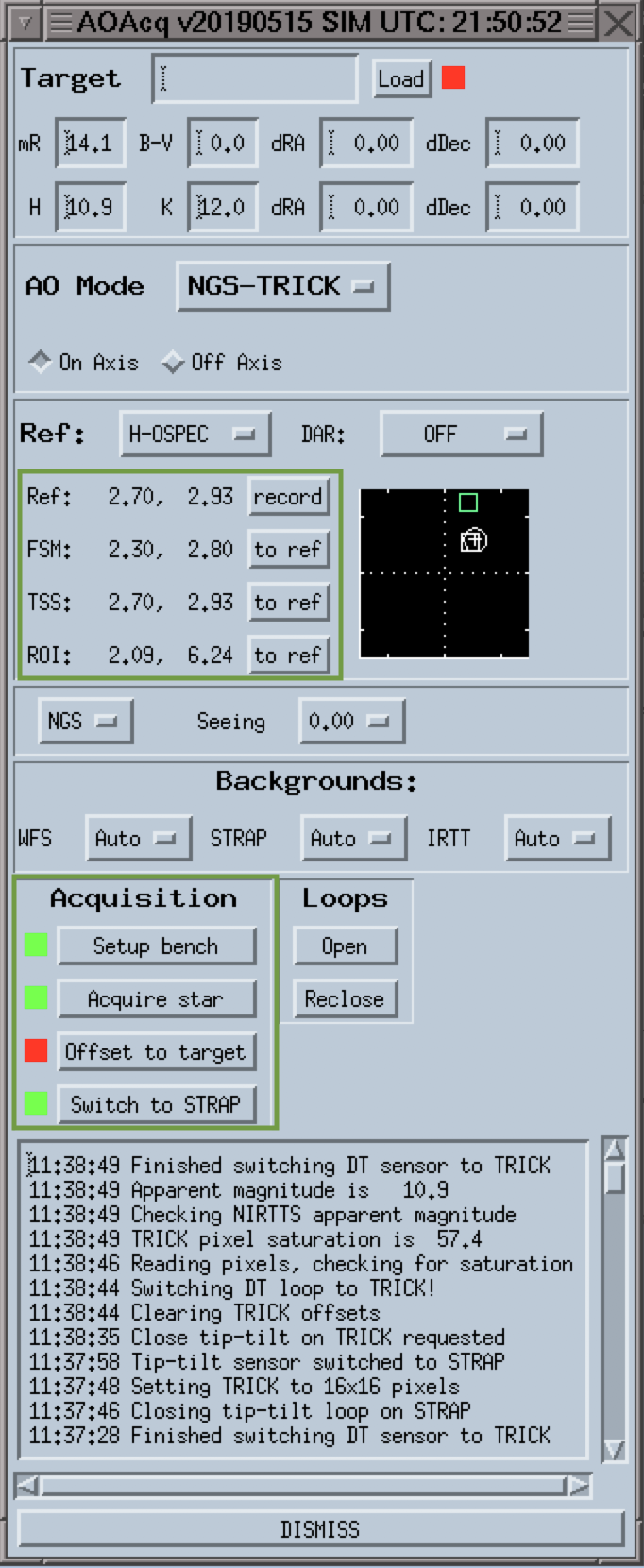
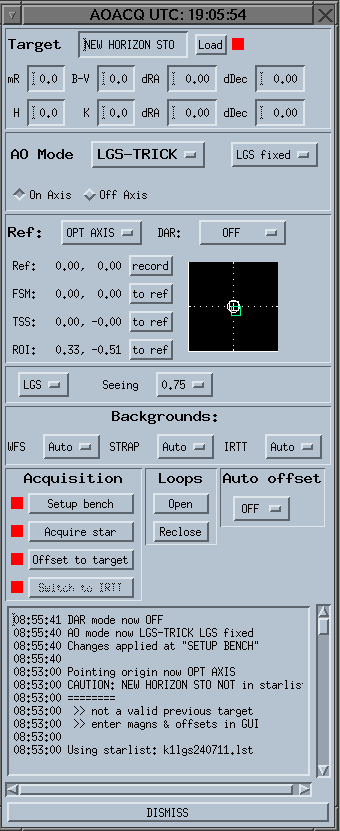
    1. In AOAcq, enter R, H, and K band magnitude.
      Load starlist and check target name, B-V, dRA, dDec, as usual.

    2. In AOAcq AO Mode, select LGS-TRICK.
      You should see that ROI info is updated. The "Switch to IRTT" button remains disabled as it was failing.

  2. PO Selection and Setup Bench
    1. In the spectroscopic mode,
      • For H band science, select K-OSPEC, because K band light is used for TRICK.
      • For K band science, select H-OSPEC, because H band light is used for TRICK.

    2. In the imaging mode,
      • For H band science, select K-OSIMG
      • For K band science, select H-OSIMG

    3. Set DAR to Acq & Track

    4. Click Setup Bench.
      This will take about 2 minutes to complete.

      Setup bench does the following:
             Send the TRICK dichroic to H-band or K-band
             Set the TRICK filter to H or Ks, according to the dichroic setting
             Set the focus position to the selected TRICK dichroic + filter position
             Update Trick ROI pixel position (x,y)
             Load a Trick cog file, e.g. 24OSIRIS-L2x2_trick.cog
             Init TRICK filter wheel (this will add more overhead)
             
  3. In AOAcq, click Acquire star.
    This runs the standard acquisition sequence. The DTsensor is STRAP*.

  4. In AOAcq, click Offset to target.
    TSS stage will stay on visTT star, TRICK ROI will go to irTT star.
    There should be offsets in FACSUM and in AOAcq, the reported positions should be:
    • Ref: At the selected PO
    • FSM: At or near Ref
    • TSS: Offset from Ref for the visTT star
    • ROI: Offset from Ref for the irTT star (can be different than TSS)

  5. Acquire Star with TRICK full frame

    There is a good chance that the IRTT star is not in the ROI initially.
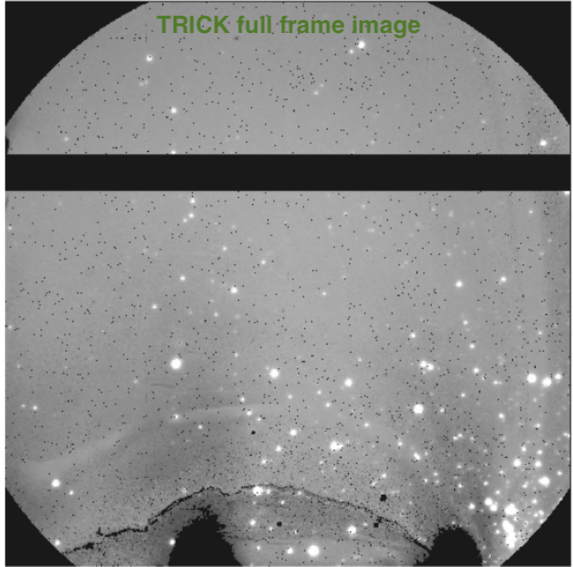
    We need to take a full frame TRICK image to identify
    the star and recenter it in ROI.

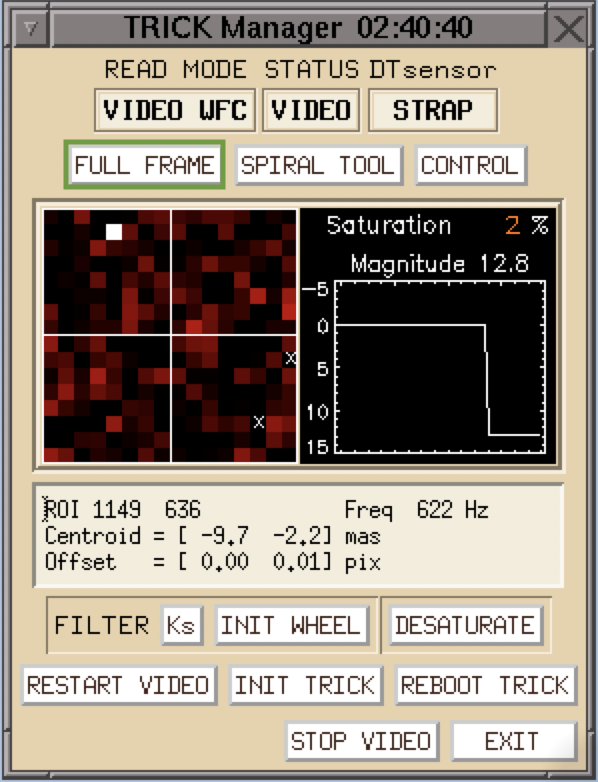
    1. In TRICK Manager, click FULL FRAME.
      It takes 40 seconds to complete the image and another window will pop up displaying the full frame TRICK image of the field.

      Note: Only click "FULL FRAME" once. Multiple clicks will result in TRICK taking
      and displaying full frame images multiple times. The overhead penalty adds up very quickly.


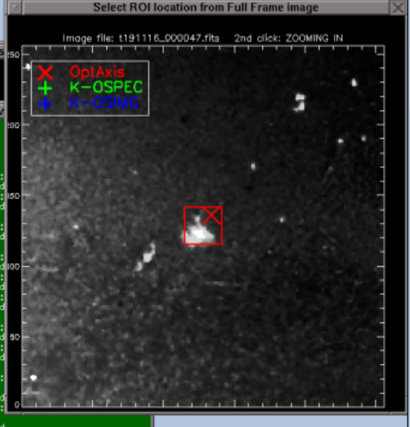
    2. Identify and click on the IRTT star in the full frame image. Only click once.
      Wait for another window to pop up and show the zoomed in image.


    3. In the zoomed in image, click on the star to recenter it in the ROI.
      This window then will disappear, and we should see the star near the center of ROI
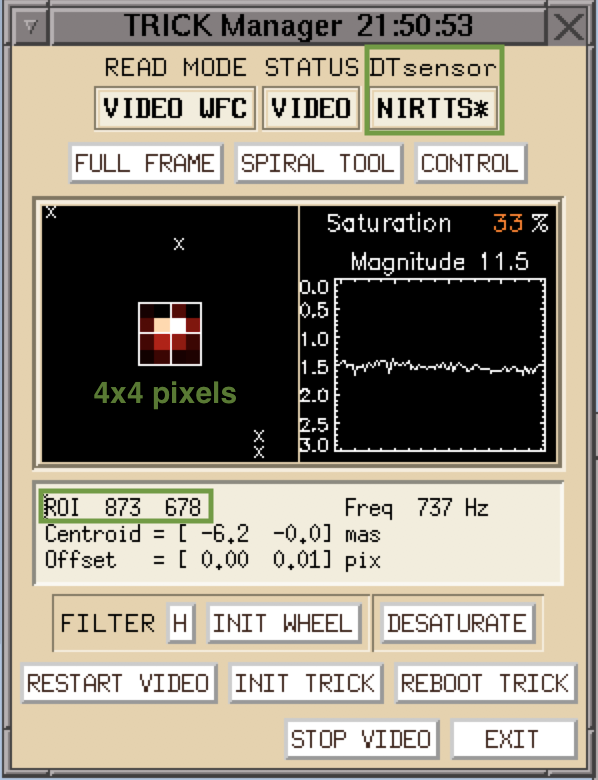
      in the TRICK Manager. The image of the star and the count level plot should be updating.
      Now the TRICK Manager is in the video mode.

    4. A small window will pop up on the upper left corner of the desktop,
      Click YES to confirm the change in ROI.
      Click NO if the change does not look correct, and retake a fullframe image.

    5. Click on the star in TRICK Manager display to move it to the center if needed. The IR magnitude will be updated in TRICK Manager, can double check this magnitude with Aoacq. If this magnitude is very diffrent from the initial magnitude in Aoacq, update the H and K mag in Aoacq, by entering the new value and hit enter. You do not need to setup bench again.

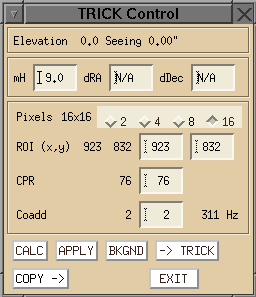
    6. In TRICK Control, click -> TRICK
      DTsensor should be NIRTTS*

    7. In TRICK Control set the ROI size, CPR, Coadd, and click APPLY
        H=9, ROI 4x4 or 8x8
      • CPR: 100-200
      • Coadd: 2 (will yield 1175 Hz)

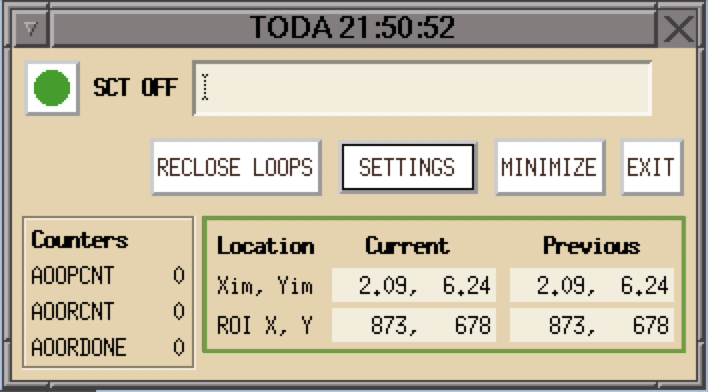
    8. In TODA Toggle the upper left button until it is green and reads "TODA On".

      If TODA shows "SCT OFF", the keyword ao.TKENRUP must be set to 1.

    9. The ROI x and y position should be the same in TRICK manager, TODA, and Aoacq.


NGS TRICK Target Acquisition

Observers may want to take NGS calibration data with TRICK to match their LGS TRICK data.
TRICK NGS mode setup and acquisition are manual.
We need to set up bench in NGS-AO and manually set TRICK dichroic, load TRICK cog,
and apply a focus delta in TRICK. Steps below. Note that we cannot close the DM loop in NGS mode + TRICK dichroic due to lack of focus range.

  1. First Steps

    1. In AOAcq, enter R band magnitude.
      Load starlist and check target name, B-V, dRA, dDec, as usual.

    2. In AOAcq AO Mode, select NGS-AO.

  2. Setup for TRICK NGS

    1. In the spectroscopic mode,
      • For H band science, select K-OSPEC as PO, because K band light is used for TRICK.
      • For K band science, select H-OSPEC as PO, because H band light is used for TRICK.

    2. In the imaging mode,
      • For H band science, select K-OSIMG
      • For K band science, select H-OSIMG

    3. Click Setup Bench.

    4. Use a script to insert the desired TRICK dichroic, load TRICK cog, and apply focus offset.
      • In a k1aoserver xterm, type cd /home/k1obsao/jlyke/TRICK , then type IDL in the same terminal
      • In the IDL terminal, execute ngstrick, ref='h-ospec' if the desired TRICK PO is h-ospec.

      • The script will do the following:
        • Install the TRICK dichroic based upon the given ref
        • Create and load a TRICK cog
        • Add a focus offset to the WFS

        If the script fails for some reason, here are the manual steps to set up TRICK NGS.

      • Manually insert TRICK dichroic, it will take about 40 seconds to complete the dichroic move.
        • In a k1aoserver xterm, type modify -s ao obtdname=hband if PO is set to H-OSPEC/OSIMG
          Alternatively, in the background menu, K1 AO Tools → SC Gui → TTD → type hband in obtdname → click S.
        • In a k1aoserver xterm, type modify -s ao obtdname=kband if PO is set to K-OSPEC/OSIMG
          Alternatively, in the background menu, K1 AO Tools → SC Gui → TTD → type kband in obtdname → click S.

      • In another k1aoserver xterm, type idl to get an IDL prompt. Type loadcog, '24OSPEC-L2x2.cog_TRICK'
        for the spectroscopic mode, loadcog, '24OSIMG-L2x2.cog_TRICK' for the imaging mode.
        This will load the correct cog file for TRICK.

      • In a k1aoserver xterm, type modify -s ao aofcc0so=-4.3 obfmgoim=1
        This will apply the focus delta for TRICK.

  3. Restore AO to non-TRICK mode

    1. In a k1aoserver xterm, type modify -s ao obtdname=open.
      Alternatively, in the background menu, K1 AO Tools → SC Gui → TTD → type open in obtdname → click S.
      This will remove the TRICK dichroic from the optical path.

    2. In the IDL terminal, type loadcog, '24OSPEC-L2x2.cog'
      or loadcog, '24OSIMG-L2x2.cog'. This will load non-TRICK cog files.

    3. In a k1obsao terminal, type modify -s ao aofcc0so=-0.3 obfmgoim=1
      This will restore the focus value for non-TRICK mode.

    4. Set up bench again in NGS-AO or LGS-AO for following non-TRICK target.